Up and recording in three steps.
We set up your workspace after a short demo. Then put RideAlong on the phones your team meets with, and add the Chrome extension for calls at the desk.
Your workspace
Do this nowBook a demo and we'll set your workspace up for you. Got a signup link from us? It finishes right here.
New workspaces start with a short demo with our team. Pick a time, and after the call we set up your workspace.
Download the app
NextThis is what your team records with out in the field. Scan the code with the phone you will use, or tap through to the store.
iPhone & iPad
Record meetings on the go, whether in person or on a video call, right from your phone.
Download on the App Store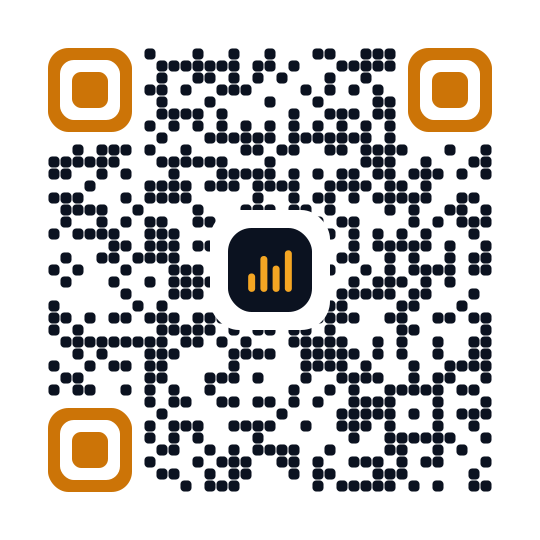
Android
Record meetings on the go, whether in person or on a video call, right from your phone.
Get it on Google Play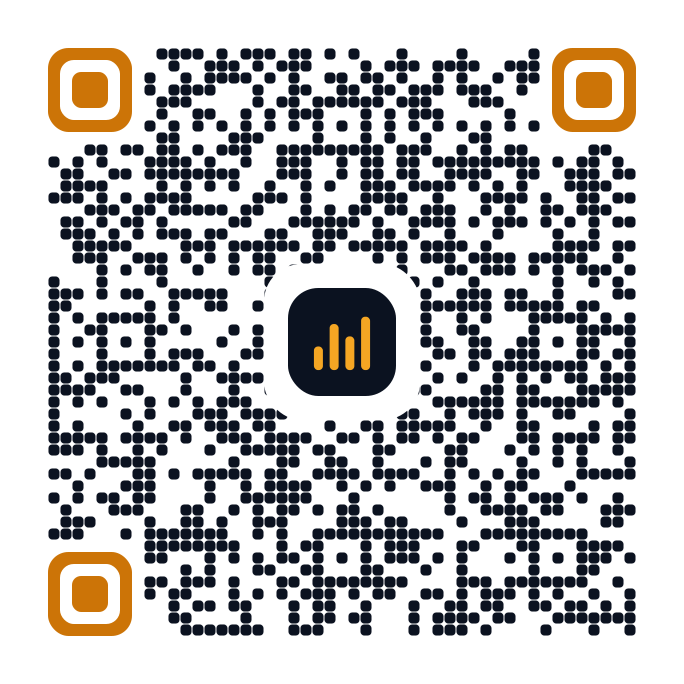
Add it to Chrome
NextFor calls you take at your desk. The extension records the browser tab and keeps your coaching protocol on screen while you talk.
Chrome extension
Record calls from any browser tab on your desktop, with your coaching protocol on screen.
Add to Chrome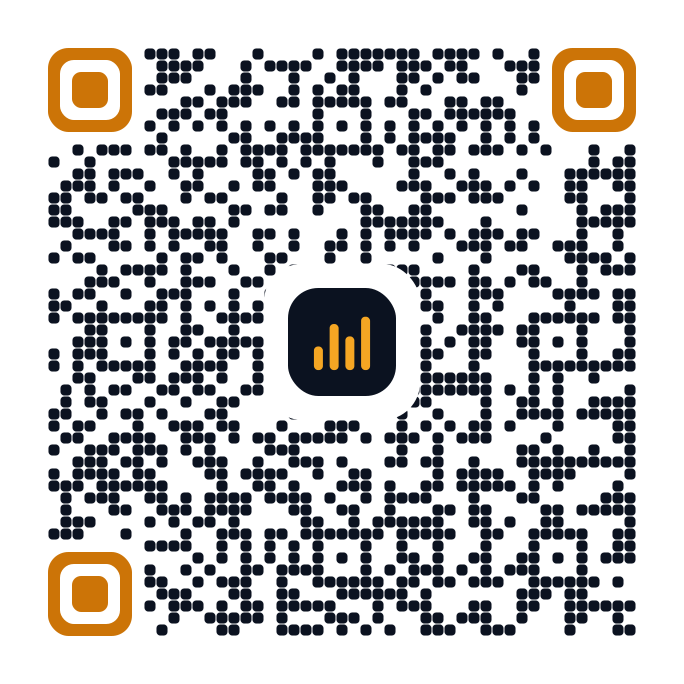
The iPhone and Android apps are for recording out in the field. The Chrome extension captures calls in a desktop browser tab. Install whichever matches how your team meets, or both.